
Memorial
An AI tribute video, made gently from your photos
Add a photo of the person you are remembering and one of you. You get a short, quiet scene of a gentle hug. No prompt to write, and no pressure to make one.
- A hug from two photos
- 2 credits for 6 s at 480p
- No prompt to write
What AI Tribute Video makes
Make an AI tribute video from photos of a loved one who passed: a gentle 6-second hug clip in a sunlit meadow. An AI imagining, not a recording. MP4.
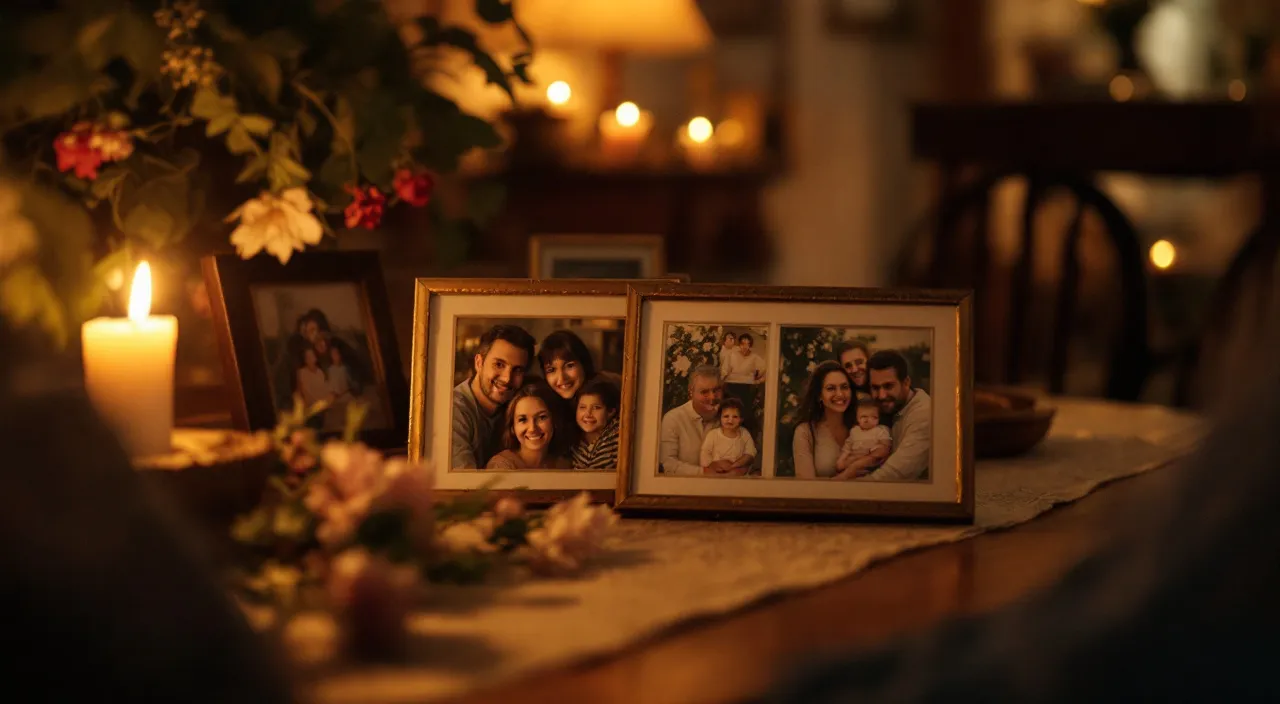
Concept image made with AI to show the idea; not a customer video.
The short answer
What an AI tribute video is, and is not
Updated October 24, 2026
An AI tribute video is a short, quiet clip made from photos of someone who has passed away: a mother, father, grandparent, partner or friend. On RapVideo you add a photo of them and a photo of you, and the AI renders a 6-second scene of the two of you in a sunlit meadow, sharing a long, gentle hug before looking toward the camera. It costs 2 credits at 480p or 4 at 720p. It is an AI imagining, not a recording of a real moment.
People use short AI clips as a quiet way to remember someone: a first birthday without them, an anniversary, a wedding they could not attend. The tribute here is deliberately simple. The scene, movement and music are written into the effect so that nothing jarring appears, and the faces come from your photos.
Many people searching for an AI tribute video prompt find that most AI tools open on an empty text box. There is nothing to write here. If you want a different moment, you can also try the other memory pages: one animates a single portrait, and another shows two people together.
Please be honest about what it is. The moment never happened. The movement is imagined by a video model, and the face may not move the way the person truly did. Share it as an AI imagining, and with the family's blessing. Some people find it comforting; others do not, and that is fine.
Set up here: Grok Imagine Video 1.5 Lite (xAI), 480p, 6 seconds, 2 credits. Read the full guide
How it works
Make it in 3 steps
- 1
Add their photo and yours
A clear photo of the person who passed, face and shoulders if you can, then a recent photo of you. A phone photo of an old print is fine.
- 2
Press create
The scene, the light and the soft music are already written, in wording that keeps it calm and kind. The button shows the exact credits.

- 3
Download and keep it
Usually ready in about 2 to 5 minutes. Save the MP4 to keep, send, or add to a family slideshow.

Why make it here
What the tribute is made of
No prompt needed
The scene, light and music are built in, written to stay calm and respectful.
Their face, from your photo
Features, hairstyle and clothes come from the picture you choose, not a template.
No voices, no lyrics
The music is a soft original instrumental. We never clone a real person's voice.
A file to keep
A 6-second vertical MP4 with no watermark, ready to add to a slideshow or send privately.
Ideas
Moments for a tribute clip
- A short clip at the start of a celebration of life, with the family's blessing
- A birthday message for a grandparent who is no longer here
- A card or video for the first holiday without them
- A wedding keepsake for the parent who could not attend
- A private clip just for yourself
Ask before you put anyone in a video, and leave public figures out of it.
Watch
AI Tribute Video videos on YouTube
Videos by creators and other tools, each credited and linked to the original on YouTube. Nothing loads from YouTube until you press play.
Grandad's emotional reaction as his grandson brings his childhood to life with Ai video for his 90th
Your Positive News on YouTubeRIP Mom & Bride Moment – A Beautiful AI Video Tribute #EmotionalWedding #AIWeddingEdit #MomAndBride
EditMaster on YouTubeHow to create a memorial video of people that has passed away using ai #aivideo #inlovingmemory
Miracle Solomon on YouTubePhoto to AI Animated Video Clips Living Memory - The Funeral Program Site
Funeral Channel Network on YouTubeGuides
Read next
Related tools
Your turn
Remember them, in your own time
When you are ready, add the photos and press create. A failed render is never charged.